About Microsoft Office
This Microsoft Office listing deals with Office Home 2024, the Microsoft suite sold as a one-time purchase for one computer and non-commercial use. It bundles the familiar applications Word, Excel, PowerPoint and OneNote. Within the category, it answers the needs of writing, calculation, presentation and note-taking at home or while studying. The version described here installs on Windows and requires a Microsoft account to tie the purchase to your profile and manage the installation.
Word handles structured documents, Excel tables and calculations, PowerPoint slides, and OneNote organized notes. Part of the suite's appeal also lies in how consistently these tools work together and in the formats widely used for exchanges. The 2024 license, though, should not be mistaken for a Microsoft 365 subscription: it guarantees neither all of its connected features nor the next major versions. Once installed, you work on local files, with a connection still needed for activation and the periodic checks Microsoft carries out. So before buying, compare the applications supplied, the number of authorized computers and your context of use. A family sharing one machine does not necessarily have the same needs as someone running several.
Pick the application to match the document
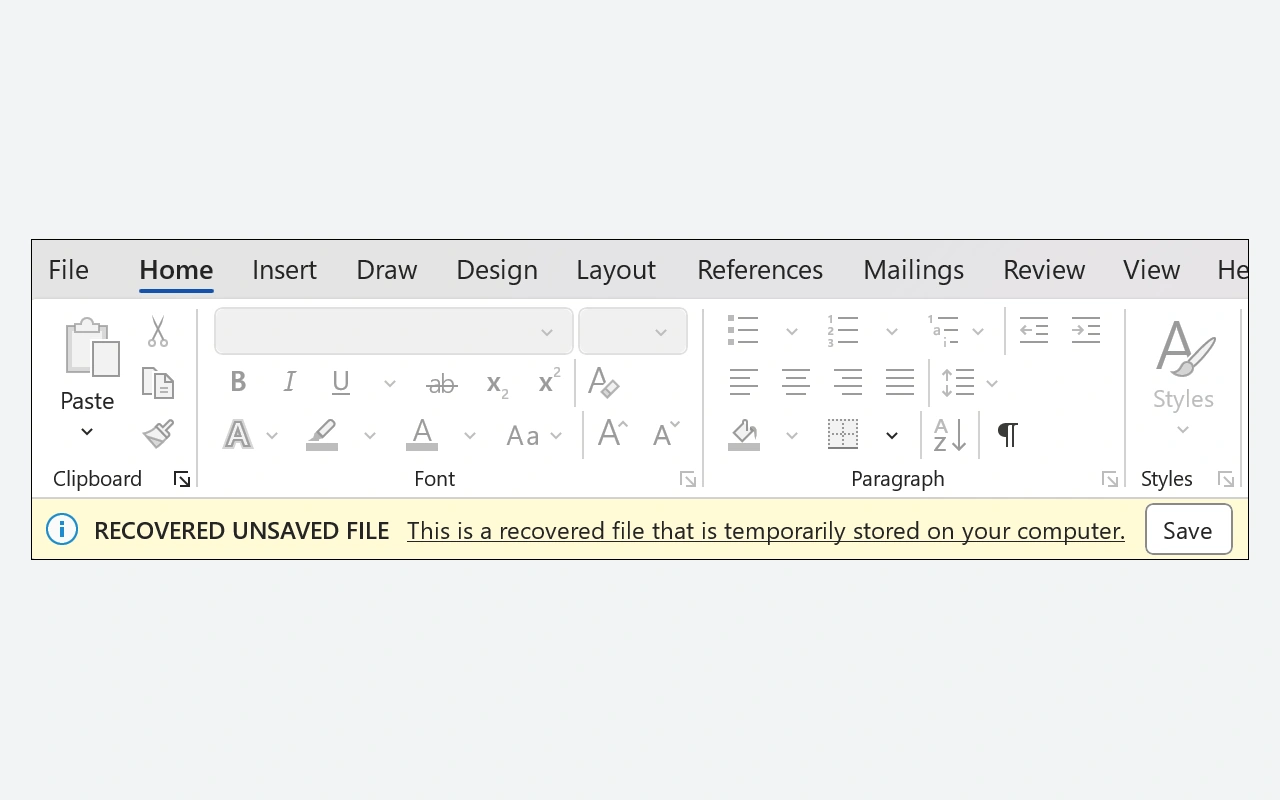
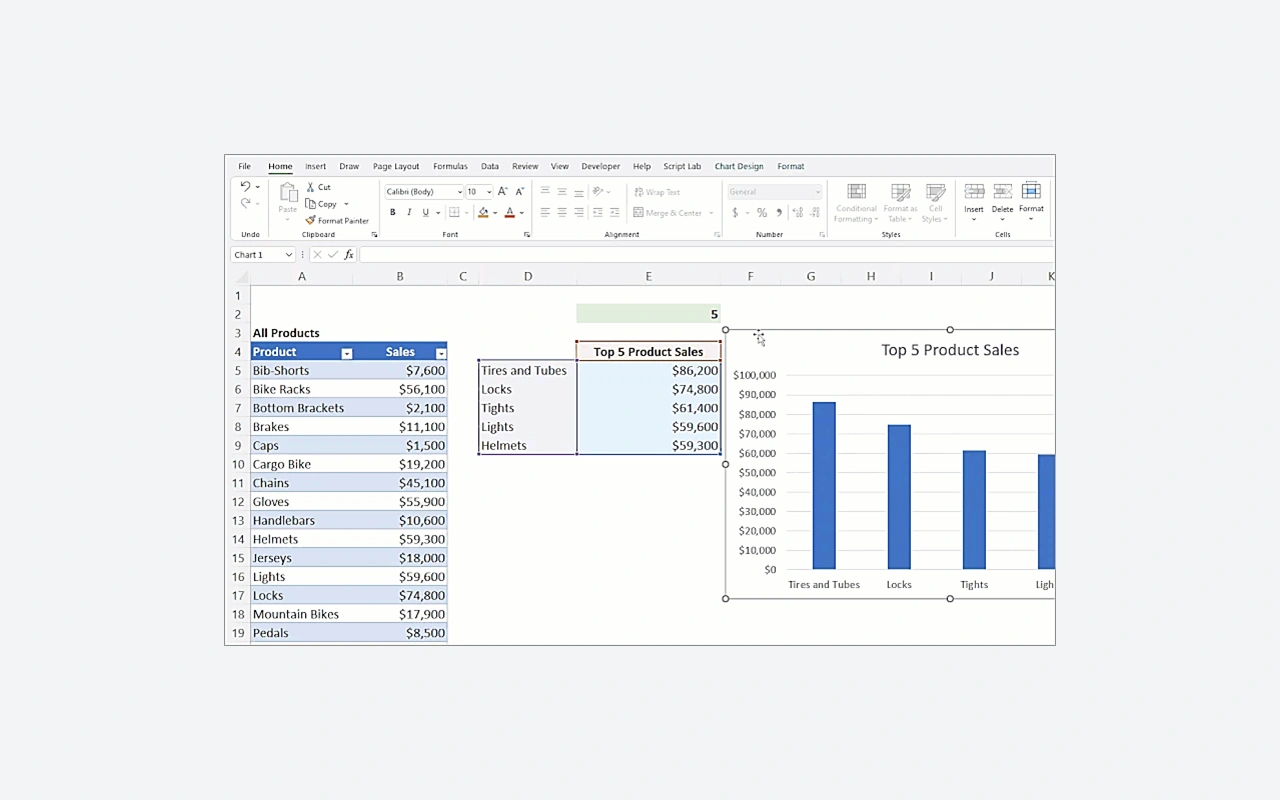
Word suits a letter, report or text that needs styles and pagination. Excel lets you structure data and chain calculations within a workbook. PowerPoint arranges slides meant for a talk, while OneNote collects notes across notebooks and sections. Begin in the application that matches the end result rather than squeezing a table into an ill-suited tool. You can then move certain elements between documents, checking whether they are pasted as an image, as editable content or as a link. That choice shapes updates and how the recipient will be able to carry your work forward.
Know what the one-time purchase covers
Office Home 2024 stands for a license for one computer and applications of this generation. A one-time purchase does not mean every future major release will arrive without a fresh purchase. Nor does it stand in for the services and rights of a Microsoft 365 subscription. The Home edition is promoted for non-commercial use; if your work calls for different rights, review the suitable offer before paying. Keep the proof of purchase and the account the license is tied to: that information helps you locate the installation and settle activation questions during a reinstall or an authorized hardware change.
Install from the account that holds the license
Once you have bought or linked a valid key, use the relevant Microsoft account to find the product under Services & subscriptions. The installer pulls down the required components and sets up the applications, so a connection is needed at this stage. On the first launch, sign in with the account that holds the right of use and follow the activation steps. If several accounts are used on the same computer, work out which one actually owns the license. An application already present does not prove it matches your purchase. Earlier installations and particular add-ons may call for a check before you settle on the right variant.
Get files ready to pass along
DOCX, XLSX and PPTX are common formats, yet the recipient may run a different version or suite. Before an important exchange, go over the fonts, the formulas and the embedded objects. For reading with no changes, a PDF export can lock down the presentation. For a shared document, agree on the format and the tools in use to cut down on repeated conversions. Macros and add-ins bring extra dependencies that need testing on their own. Keep a copy of the source document and give the versions you send meaningful names; that way you will not mistake a reading copy for the file that still holds every editable element.
Arrange offline work and the connections you need
Desktop applications let you work on files saved locally, so you do not need a constant connection for every bit of writing or calculation. Microsoft, however, requires the Internet for installation, activation and periodic checks. Features that rely on online services also depend on their availability and the associated rights. Decide deliberately where to save your documents and make sure you can still reach them offline when needed. A synced file may be in a different state from a copy held entirely on disk. Plan as well for a separate backup of important documents, since the suite's license is not a retention strategy.
Weigh the suite against what you really need
LibreOffice is a free alternative that gathers word processing, spreadsheets and presentations in one place. It can open many Microsoft Office formats, but complex documents call for a compatibility check. The Microsoft Word, Microsoft Excel and Microsoft PowerPoint listings spell out what each application in the catalog is for. SumatraPDF can do for reading a finished PDF without opening a full suite. To decide, start from a few representative files: a report with styles, a workbook with formulas and a slideshow with media. Compare how they render and the features you cannot do without, then look over the licensing terms. The count of included apps only helps if it lines up with the documents you usually handle.
Key features
- Word for writing laid-out documents
- Excel for arranging tables and calculations
- PowerPoint for assembling slide presentations
- OneNote for gathering and ordering your notes
- Desktop applications usable with local files
- A single-computer, non-commercial one-time purchase
System requirements
Windows 11, 64-bit variant: 4 GB RAM and 4 GB disk; 1.1 GHz 2-core processor; Microsoft account and periodic Internet.
How to install
- Buy Office Home 2024 or link your valid key to the intended Microsoft account.
- Open the services and subscriptions for this account then choose the Office installation.
- Download and launch the installer on your Windows computer.
- Wait for the apps to finish downloading and installing.
- Open Word or Excel and activate the suite with the account associated with the purchase.