About Microsoft Word
Microsoft Word is Microsoft's word processor for preparing documents whose content and formatting must stay editable. This page covers Word 2024 for Windows, offered with a suitable license, notably within certain Office suites. You can write a report, organize a file with several heading levels or correct a document you have received. Paragraphs, tables, notes and images sit together in a single file. Styles are there to set a consistent presentation without touching each line one by one. Word thus covers writing needs that go well beyond simply typing plain text.
Within our category selection, its value stands out above all when the document moves through several stages: draft, proofreading, corrections and the version handed to the reader. For a report by a community group, you can keep the comments during preparation and then turn out a clean copy for distribution. Before you download Word, identify the edition included in your purchase or account. Word 2024 and the Word provided by Microsoft 365 do not share exactly the same access conditions or the same pace of change. The choice also depends on the people who will review your files and the formats they use.
Lay out the structure before polishing details
Apply heading styles to the main parts, then to the subparts. This structure makes it easier to move through a long document and prepares a table of contents. It keeps you from turning each heading into a paragraph simply enlarged by hand. For a report that changes often, edit the style just once so the setting carries over to every passage concerned. Then check the page breaks and the flow between sections. A steady presentation also aids rereading: a reader spots a new idea, an example or a conclusion more quickly when the outline levels stay consistent from start to finish.
Revise without wiping out earlier choices
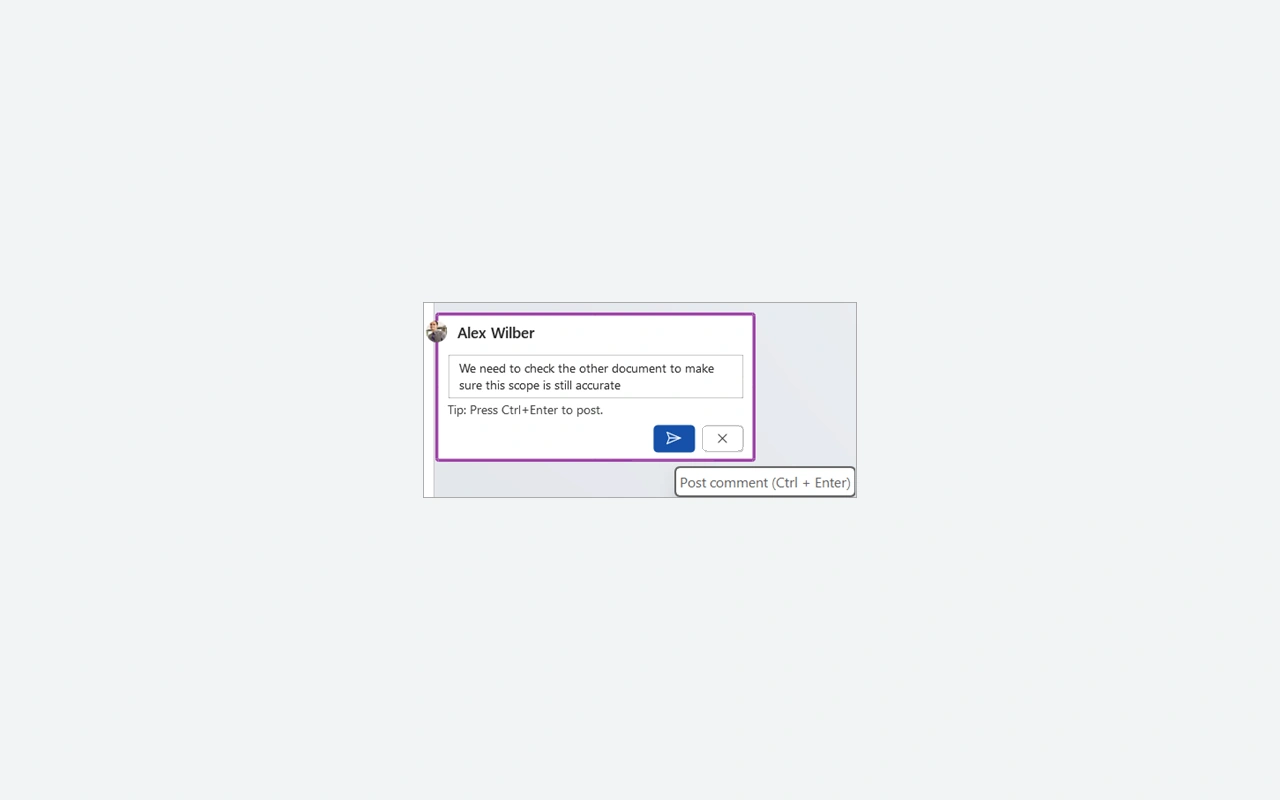
Track changes separates the proposed corrections from the text already in place. Comments let you debate a passage without folding it into the final content right away. Settle on a simple method with your reviewers: who corrects, who replies and who accepts changes. Before the final send, go over the pending edits and the comments that should not go out. Displaying a document with no marks does not necessarily mean the revisions are gone. Keep a working copy to trace the decisions, then prepare a separate file for the people who do not need to follow the whole proofreading process.
Place tables and images within the text
Use a table to lay out information arranged in rows and columns, such as a list of participants or a schedule. For a photograph or diagram, watch the wrapping and the position relative to the neighboring paragraphs. An image set nicely on a page can shift once text is added higher up in the document. So look over the layout after any major correction. Do not try to line up elements with long runs of spaces: reach for the alignment tools provided, then check the result in print preview and on pages that gather several objects of different sizes.
Prepare a file the recipient can read
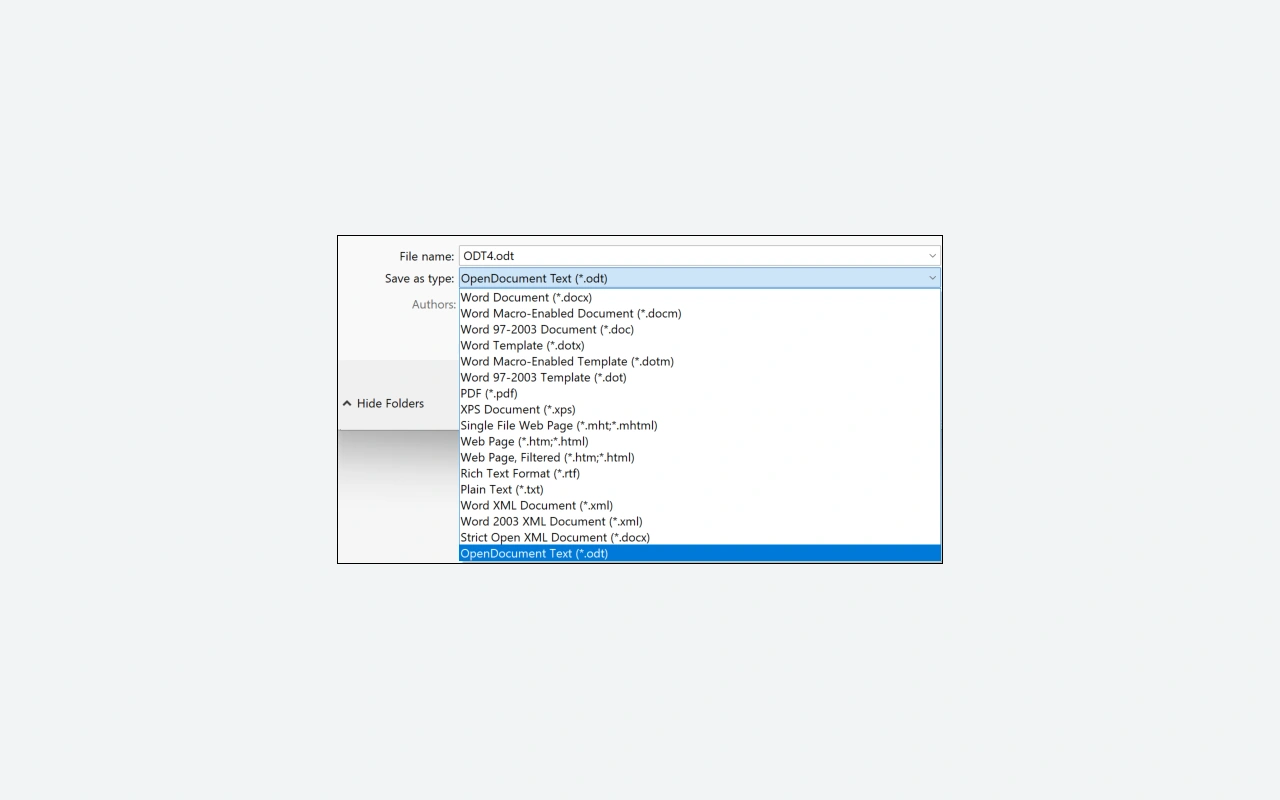
The DOCX keeps the working document for further drafting. A PDF copy is right when you want to pass along a fixed presentation for viewing or printing. Open that copy straight after the export and check the pages, the useful links and the graphic elements. If your correspondent still has to edit the text, also send the editable file following your way of collaborating. The available fonts and the software in use can affect the rendering. For a large document, test a few representative pages with the recipient before settling a complex layout that hinges on many typographic details.
Choose Word 2024 while gauging its scope
Word 2024 belongs to the Office generation available through a suitable one-time purchase. Microsoft 365 also provides Word, but as part of a subscription and with services that depend on the plan. Do not assume a feature shown for Microsoft 365 is part of Word 2024. Microsoft's current technical documentation lists Windows 11, 4 GB of memory and 4 GB of free space for the Office 2024 apps, with the actual download size liable to vary. A connection is required for installation and activation, and periodically to keep the activation. Check your account before planning extended use away from a network.
Reach for another tool depending on the document
LibreOffice offers Writer for structured documents and is an alternative in the catalog to try out with your own files. Test the tables, the notes and the pagination if you exchange complex DOCX files. For calculations that must stay linked to the data, Microsoft Excel suits better than a table filled in by hand in Word, while Microsoft PowerPoint is more for building a projected presentation. These programs can complement one another within a single task. Start by fixing the format of the expected result: a document to read, a spreadsheet to update, or material meant to be talked through in front of a group.
Key features
- Writing documents with headings and structured paragraphs.
- Styles to unify the presentation of the document.
- Comments to discuss the passages up for review.
- Change tracking throughout the proofreading.
- Inserting tables, images and notes into the text.
- Table of contents built from the headings.
- DOCX saving to resume corrections later.
- PDF export to hand over a read-only copy.
System requirements
Windows 11; Office 32 or 64 bits depending on the package; 4 GB RAM; 4 GB free; 1.1 GHz dual-core processor; Internet connection for activation.
How to install
- Sign in to the Microsoft account that your Word or Office license is associated with.
- In Services and Subscriptions for this account, select the installation of the product you own.
- Run the downloaded OfficeSetup file, allow the installation and wait for the completion confirmation.
- Open Word from the Start menu, accept the terms displayed and activate it with the account corresponding to your license.