About Minecraft: Java & Bedrock Edition
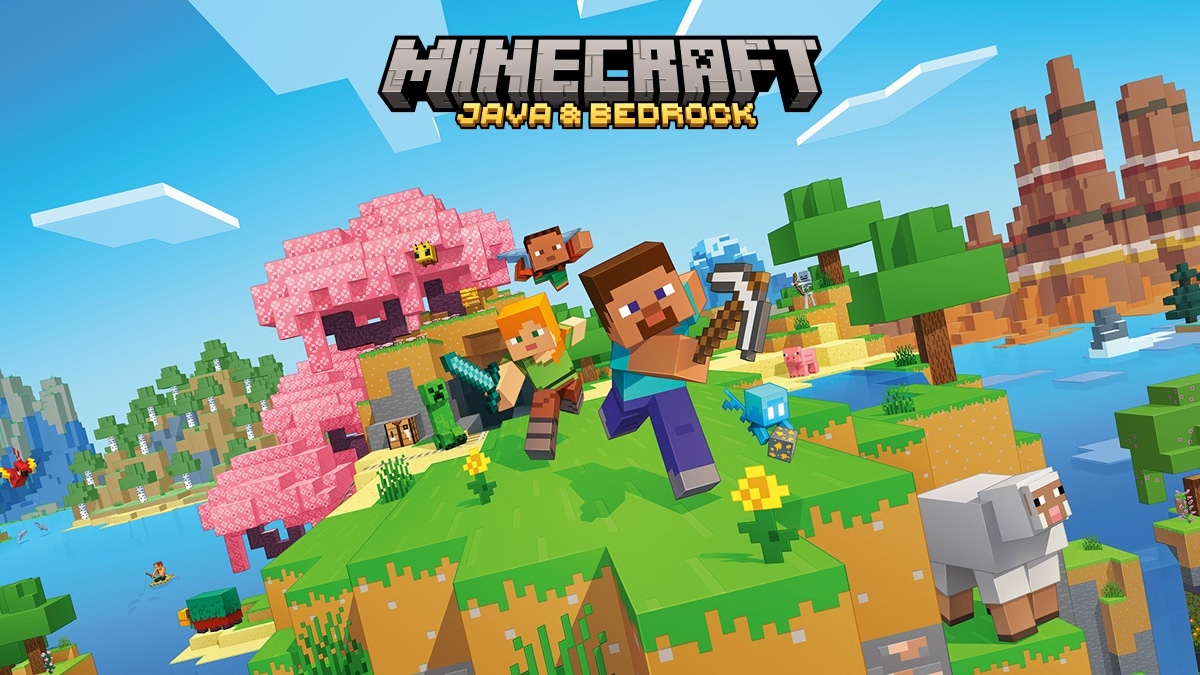
Minecraft: Java & Bedrock Edition is Mojang Studios' PC offering that gathers two editions of Minecraft. You roam worlds made of blocks, collect resources and build according to the rules of the mode you pick. This games category listing deals with use under Windows. Survival mode makes room for resources, dangers and crafting; Creative mode stresses construction, with immediate access to materials and suitable movement.
Java Edition and Bedrock Edition rest on this same broad idea, but their ecosystems diverge. Java suits community modifications and servers built for this edition above all. Bedrock, called Minecraft for Windows on PC, lets you play with other Bedrock users on compatible platforms. Do not take it for granted that worlds, expansions and servers are identical between the two. Before a game with friends, settle on a common edition and check the required content.
The Minecraft Launcher is there to find the games linked to your Microsoft account and manage their launch. Buying the base game does not mean that all of the Marketplace content or the Realms subscriptions are included. Look at the precise offer and the requirements of each edition, since the hardware needs of Java and Bedrock do not line up.
Agree on an edition with the other players
Before you create a world for the group, ask your friends which edition they use. Java Edition joins compatible Java servers, whereas Bedrock sets up its shared game with the other supported Bedrock installations. The name Minecraft on its own does not secure this compatibility. Check as well the version of the game and any content the server calls for. Once the choice is made, go through the launcher to open the right edition. That keeps you from polishing a world for a long time on the assumption that it will be reachable from any device or from the other edition shipped in the PC offer.
Begin Survival with a modest goal
A first session turns out clearer if you aim at a concrete objective: pin down a spot, prepare a shelter and organize the basic resources. The world does not force a single way of building on you, but its dangers make preparation worthwhile. Hold on to useful tools and avoid setting out with all your precious materials during an unknown exploration. When you head underground, think ahead about the way back. Progress owes as much to organization as to what you find. You will scale up your projects once you have grasped how resources, movement and crafting work.
Put Creative mode to work for your builds
Creative mode lets you fix your attention on the shape of a building, the layout of a landscape or a mechanism. Set up a test area to compare materials before using them everywhere. When building with others, agree on the scale and the reserved spaces so the projects join up cleanly. The technical possibilities can vary with the edition and the version. A mechanism seen in a Java guide does not necessarily behave the same in Bedrock. So note that context when you follow a tutorial, and keep a copy of the world before any sweeping change.
Keep Java mods apart from Bedrock content
The community modifications of Java and the content offered for Bedrock belong to separate systems. Before adding a pack, check the edition, the version and any dependencies. Marketplace purchases do not by themselves provide a version usable in Java, and a Java mod does not install like Bedrock content. Keep a plain installation to isolate a problem, and copy your worlds before swapping components. To play on a modified server, each participant may need a consistent set of files. Follow the server's instructions without blending guides meant for other environments.
Make sense of hosting options and purchases
You can play alone, join a compatible server or rely on the sharing options tied to your edition. Realms offers subscription hosting, separate from the base purchase. The Bedrock Marketplace likewise holds content whose terms vary. Start by pinning down what your group needs: an occasional local world, a server run by a participant, or hosting available without this computer. No subscription is required to build on your own. Check the renewal terms and what is included before settling on a service, especially if you are only after a few sessions with friends.
Set Minecraft against Terraria and Roblox
Terraria blends building and exploration in a two-dimensional world, with strong progression through equipment and combat. Roblox opens access to varied experiences created on a shared platform. Minecraft, for its part, centers on blocky worlds that you reshape within the chosen edition. If you want to shape a personal territory over time, look into its building and survival modes. If you are mainly after a two-dimensional adventure, Terraria may fit better. To move between experiences with different rules, Roblox offers another way of playing within a single application.
Key features
- Roam generated worlds made of blocks.
- Build as you please in the game's Creative mode.
- Gather materials and craft your equipment.
- Opt for Java Edition or Minecraft for Windows.
- Join servers that match your edition.
- Share Bedrock worlds across compatible platforms.
- Add content according to its edition and version.
- Find your purchases through your Microsoft account.
System requirements
Bedrock: Windows 10 build 19041+; ARM/x64; RAM 4 GB; 4 GB disk. Java: Windows 10 64-bit or Windows ARM; x64/ARM64; RAM 8/12 GB depending on GPU; 2 GB disk.
How to install
- Download Minecraft Launcher from the official website or the Microsoft Store listing indicated by Mojang.
- Install the launcher, open it and log in to the Microsoft account that has the Minecraft: Java & Bedrock Edition offer.
- Choose Java Edition or Minecraft for Windows depending on the edition you want and install its files.
- Launch the selected edition, create a local world, or join a server compatible with your version.