About MediaMonkey
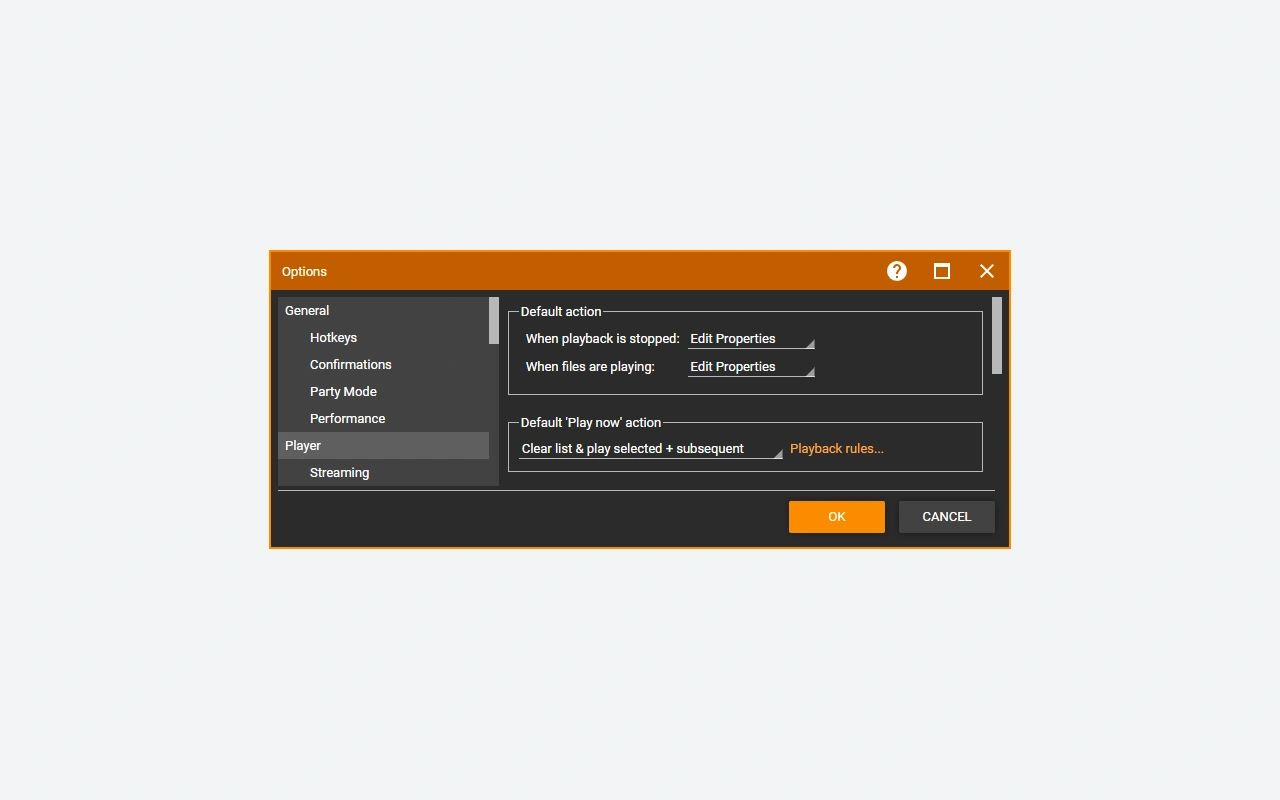
MediaMonkey is a media library manager that comes from Ventis Media. Every file in your collection ends up in one catalog you can explore by artist, album, genre, or location. Alongside playback, the software bundles tools for editing metadata and keeping it in sync. Released for Windows, this category application ships as a free Standard edition, with a Gold license unlocking extra capabilities. It targets above all those who own a local collection they want to tidy and look after.
The catalog and the files on disk go together, yet they are not one and the same. Editing a tag may write it into the media itself, whereas renaming a file or moving a folder affects where it sits. Grasping this difference keeps you from accidentally reshuffling a collection other programs already rely on. MediaMonkey lets you build playlists, spot incomplete fields, and push media out to compatible targets. The payoff grows once your files originate from several sources and follow clashing conventions. Rather than automating the sorting right away, try it first on a handful of albums: that way you settle on a consistent method while keeping the quirks that matter in your library.
Add a collection without upsetting its layout
Point only to the folders that really hold your media, then let MediaMonkey scan them to assemble the library. Do not pile up several copies of the same collection when it is unclear which one should serve as the reference. When tags look alike, the file path is what tells two versions apart. Decide on the layout you want for artists, albums, and compilations before you turn on automatic tidying. Backing up both your files and the database safeguards two separate pieces of work. And if the collection lives on a removable drive, keep a reliable way to locate it so references do not go missing for no reason.
Fix tags around one clear convention
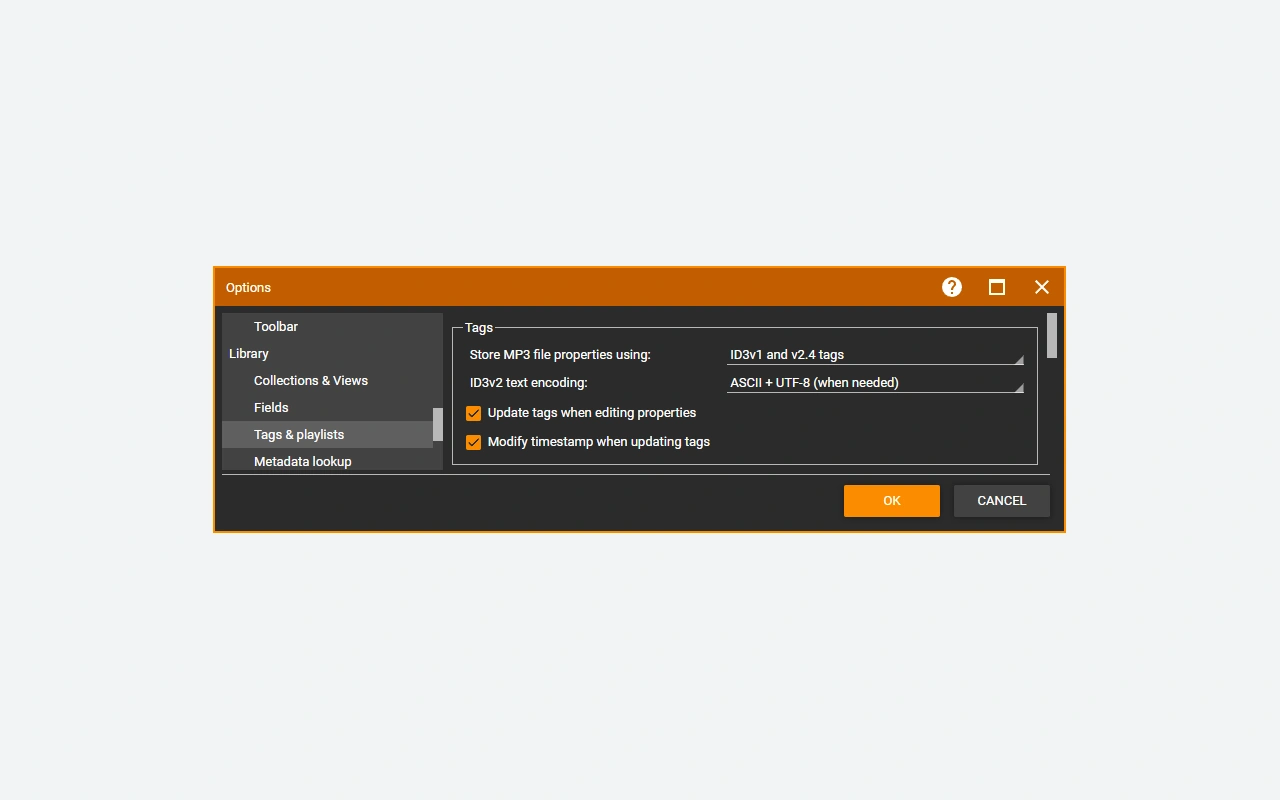
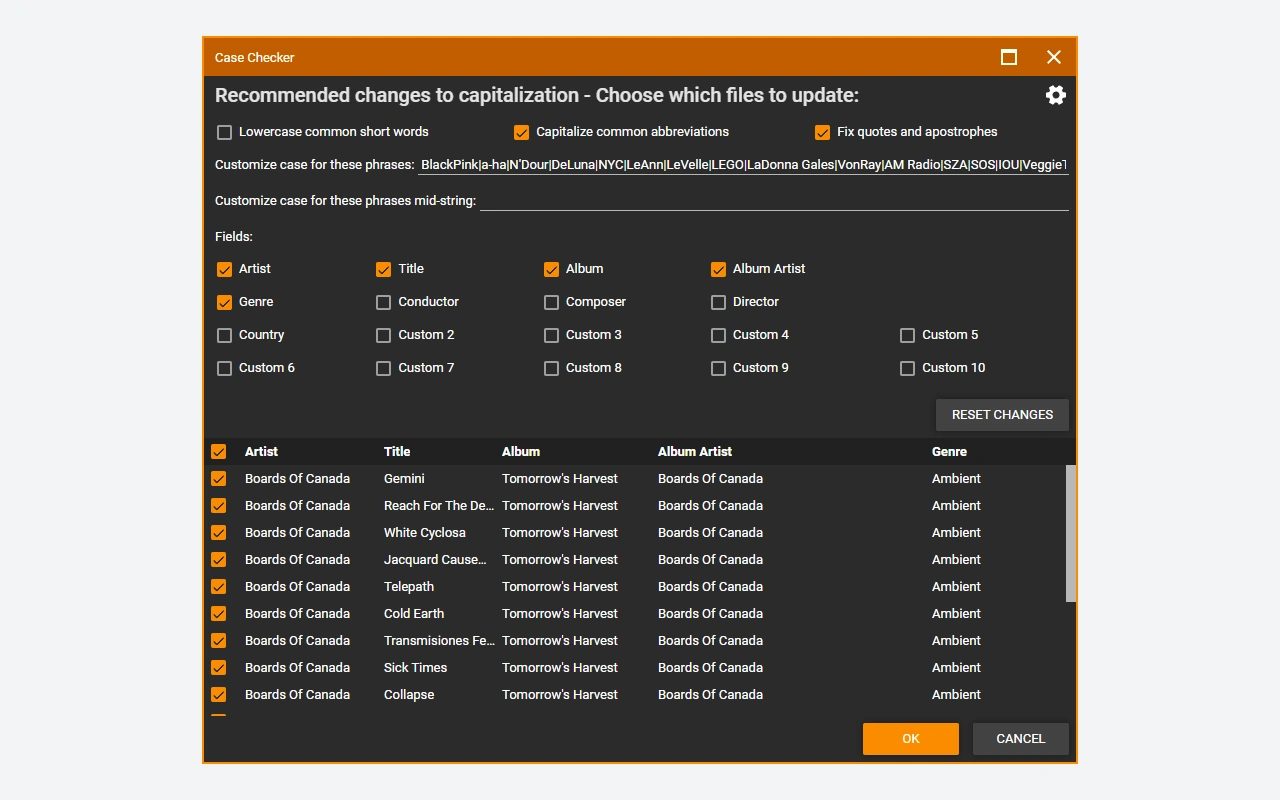
It is from the metadata that the library gathers albums and artists together. A different spelling, a blank field, or a mismatched album artist is enough to scatter one set. Work through the information in small batches and check the outcome before you turn a rule into a blanket one. Metadata and artwork lookups help only when they match the edition you actually own. A compilation and an original album sometimes share tracks while carrying different information. Keep an eye on the disc numbers in box sets as well. With uniform tags, searching, listing, and browsing on synced devices all get easier afterward.
Build playlists and listen without level jumps
A playlist gathers songs for an occasion or a device without necessarily touching where the files sit. On top of that, MediaMonkey offers functions for volume analysis and leveled playback. Keep the analysis and the playback adjustment it applies separate from operations that rewrite the audio data itself. To judge the outcome, play several tracks drawn from different albums and watch how the player reacts. Each piece keeps its own dynamics, even when the perceived levels draw closer together. A good list therefore does not rest on a single figure: the listening setting and the order of the tracks weigh just as much on the result you are after.
Keep control of the destination when syncing
Syncing sends a selection of media out to compatible devices and services. Before that very first transfer, go over the target folders, the selection criteria, and any deletions that might be scheduled. Begin with a short list so you can check tags, cover art, and playback on the device. Whether conversion happens automatically depends on what the edition in use allows and on the formats involved. The copy handed to a device need not match the original kept in the library. So set a clear rule for converted versions and keep an eye on free space, especially since an automatic selection can swell as you add new albums.
Grasp what Gold brings over Standard
Standard handles the basics of management and playback, while Gold chiefly adds automation and more far-reaching settings. The official page separates automatic organization, certain tagging functions, custom collections, and conversion or streaming options. Codec components may carry their own restrictions too; some encoders are promoted with a limited trial period when nothing is purchased. So weigh what your library genuinely needs before you settle on a license. A Gold license tied to one generation and a lifetime license do not grant the same upgrades. Check the plan shown at the moment you pay.
Set the library against a plain player
When all you want is to open a file or glance quickly at a video, VLC media player does the job. GOM Player Plus stands as another commercial playback offer. What sets MediaMonkey apart is rather the catalog, the tags, and the upkeep of a collection kept current. Movavi Video Converter, for its part, covers the conversion need without acting as a music library manager. To choose, start from a concrete case: pull together every song by an artist, straighten out a compilation, and push a list to your device. If such moves come up often in your routine, the library structure counts for more than the sheer number of formats on offer.
Key features
- Browse the library by artist, album and location
- Edit tags across a batch of selected files
- Retrieve album metadata and cover artwork
- Playlists matched to your musical choices
- Synced transfer to compatible destinations and devices
- Extra Gold features for automating the collection
System requirements
Windows 10 or 11, 32 or 64 bits; 4 GB of RAM; 1 GB of disk available; Multimedia components required for Windows N.
How to install
- Download MediaMonkey for Windows from the Ventis Media website.
- Launch the installer and choose the options offered for your installation.
- Open the application then select the media folders to analyze.
- Check the first imported albums before modifying their tags.
- If you have Gold, enter the license in the app.