About ScreenToGif
ScreenToGif is a tool for capturing and editing animations developed by Nicke Manarin and his contributors. It records a region of the screen, a webcam or a drawing board, then opens the result in an editor that shows the frames one by one. Within the category of creative tools for Windows, it lends itself to short demonstrations: illustrating a click, pointing out an interface flaw or preparing a small animation for documentation. You can remove frames, set their duration and add elements before choosing the output format.
The project is distinct from live streaming software. Its appeal lies in the careful preparation of a short sequence, with full control over the frames you keep. The final size follows chiefly from the dimensions, the duration and the number of frames. The official repository provides several architectures as well as installable or portable packages. Lightweight and full distributions do not carry the same built-in dependencies. Examine the chosen package, then, rather than comparing its size alone. The original website may redirect to another offer from the developer; this page does describe ScreenToGif and the files published in its official repository, so check the product name before downloading.
Frame the capture around the action that matters
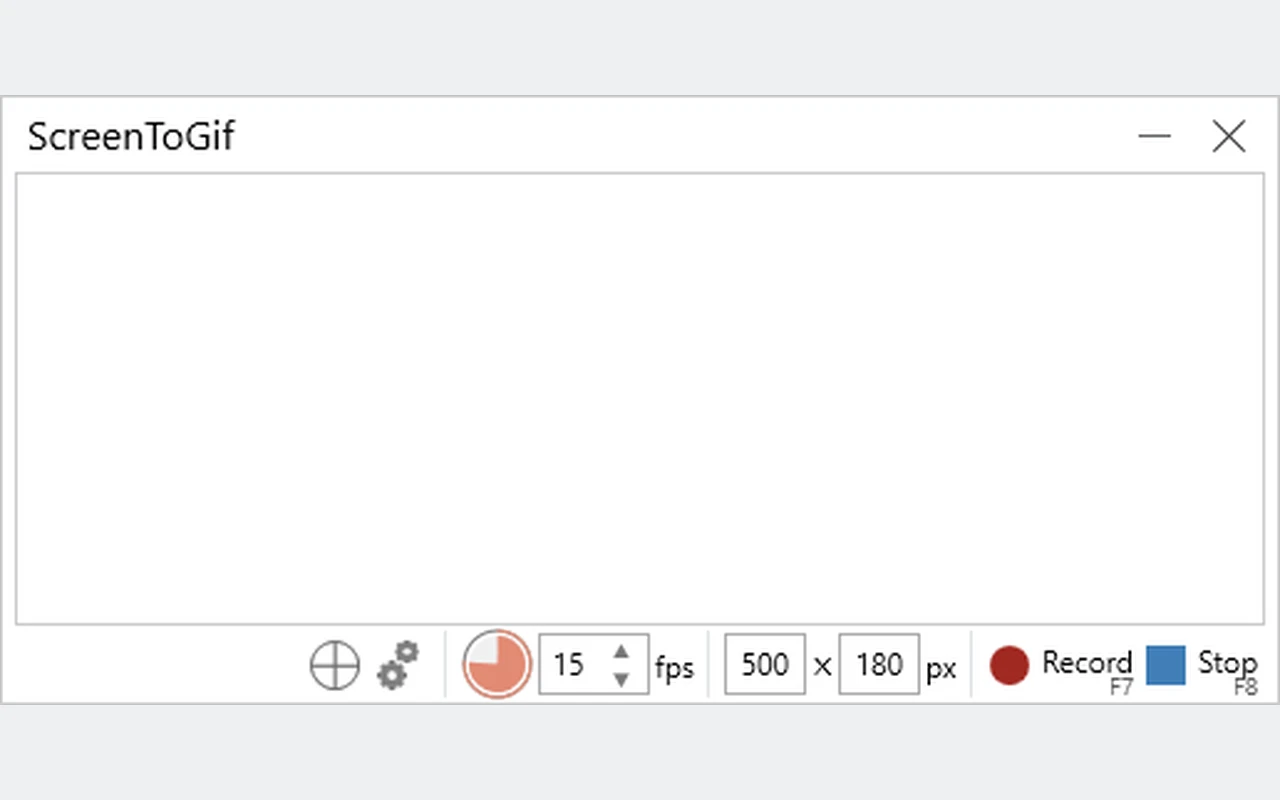
Place the capture window on the region to be shown before you start. A tightly drawn area often makes the result more readable and cuts down on needless elements. Prepare the targeted application so that a long menu search is not recorded. Adopt a frame rate suited to the movement: a typing demonstration and a quick animation do not necessarily require the same number of frames. Run a short test to check the framing, the cursor and the duration. During the capture, avoid moving the targeted window out of the recorded area. You can then remove the dead time in the editor.
Rework a sequence frame after frame
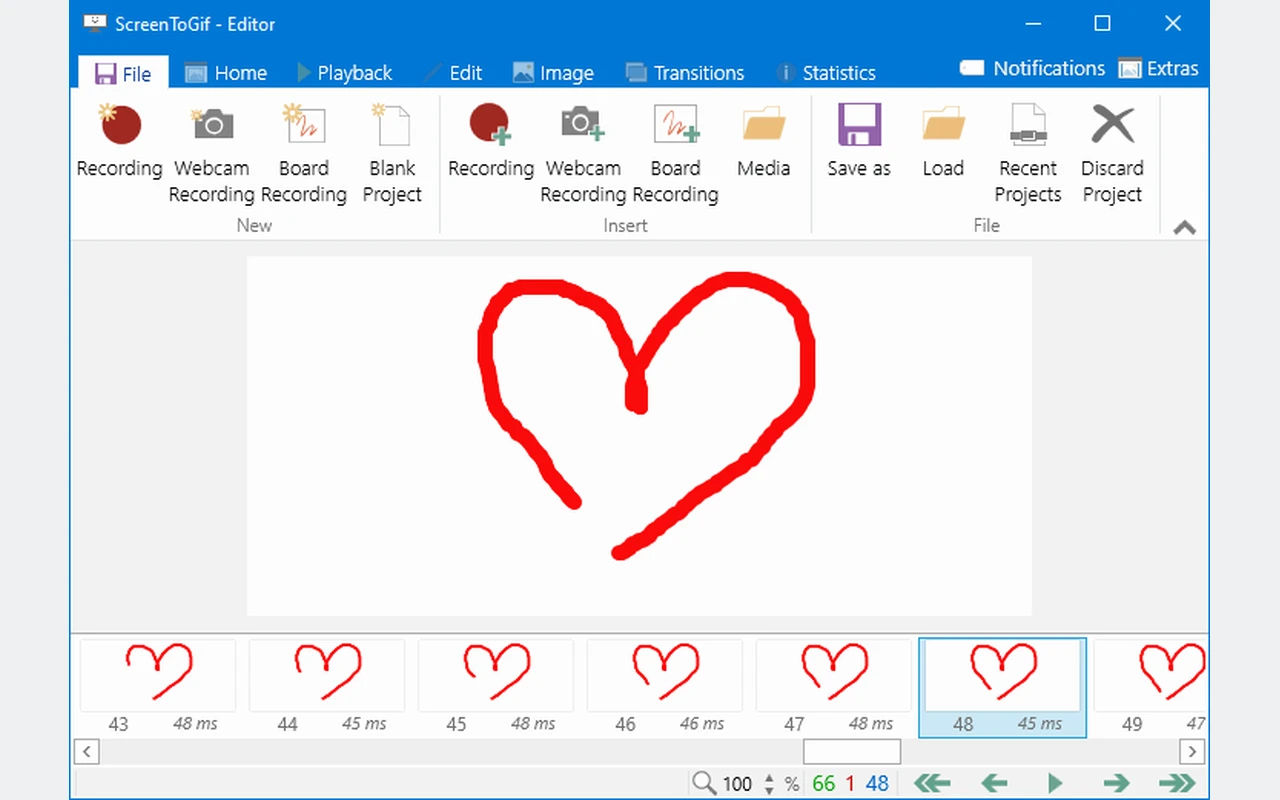
Once the recording is finished, the editor shows the images that make up the sequence. Select the needless passages and check the transitions after deletion. The duration attached to each image makes it possible to give more time to an important step without multiplying identical captures. Watch the full playback after several corrections: an edit that looks right on a still view can turn out too fast in motion. Keep a working version before any sizeable change. If you add titles or guides, make sure they stay readable at the final dimensions and do not hide the button or result you want to show.
Adjust the export to the target medium
GIF stays handy for a simple animation, but it imposes color constraints and can become heavy. Other outputs meet different needs, depending on the encoders and the options available. Before you reduce all dimensions, identify what really explains the action: the text, the pointer or a visual change. Export a sample and open the resulting file in the destination application. The colors, the loop and the durations must remain understandable. An animation meant for a help page does not necessarily demand the same quality as a demonstration shown on a large screen. Keep the project so you can fine-tune the export afterward.
Rely on annotations to clarify a demonstration
Visual cues can help the reader follow a brief procedure. Add a hint the moment it becomes useful, then remove it when the action changes. Too much text or too many effects make the capture harder to read. Also check that the color of the mark stays visible against the application's background. For a series of demonstrations, keep text size and placement consistent. Annotations explain an existing capture; they must not give the impression that the application showed information that was absent. Reread the result from the standpoint of someone discovering the procedure who does not know your shortcuts.
Choose the right package and check the required components
The repository publishes x86, x64 and ARM64 variants, as well as lightweight and full distributions. Work out your architecture before downloading. The current documentation mentions the .NET 9 desktop runtime for configurations that need it. A small package therefore does not necessarily mean a smaller total install on a machine lacking its components. For some video exports, also check the settings tied to FFmpeg. Use files coming from the same project and version. The notes for patch 2.43.2 cover, among other things, video exchanges with FFmpeg and memory problems.
Decide between short animation, long recording and montage
OBS Studio suits the capture of several sources and streaming, while ScreenToGif favors short sequences you want to rework frame by frame. Shotcut serves to organize a video edit with tracks. LosslessCut instead prepares cuts within existing files, depending on the format's limits. These tools can complement one another in documentation or a presentation. First set the expected result: an animated loop showing a gesture, a long recording or an assembled film. Then test the final format and its size before producing a whole series of captures intended for the same medium.
Key features
- Capturing a defined region on your screen.
- Recording from a webcam or a drawing board.
- Removing superfluous frames from a sequence.
- Setting the individual duration of each image.
- Adding text and visual cues.
- Exporting animations according to the formats offered.
- Portable and installable builds for several architectures.
- Reusable project for preparing several adapted outputs.
System requirements
Windows; variants x86, x64 and ARM64. Runtime .NET depending on the package; RAM and disk minimums not confirmed.
How to install
- Open the Releases from the official ScreenToGif repository and choose a Setup package adapted to your architecture.
- Download the full MSI if you want this distribution, then open it.
- Follow the wizard and verify the requested components for the chosen variant before finishing.
- Launch ScreenToGif, record a few seconds and test the export in the expected format.